Installing a Custom Operating System
This guide explains how to install a custom operating system on a Cloud Dedicated Server using the Proxmox web interface.
If you ordered a preinstalled OS, you can skip this guide and connect to the server using the credentials from the welcome e-mail.
Accessing Proxmox
- Log in to the Client Zone.
- Open your Cloud Dedicated service.
- In the server menu, choose Open Proxmox.
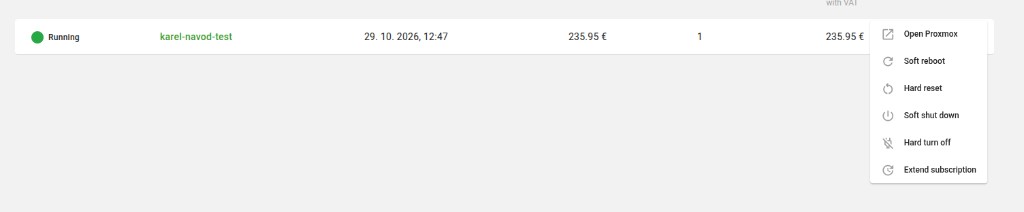
You will be taken to the Proxmox web interface for your server.
Attaching the Installation ISO
- In Proxmox, open your virtual machine (VM).
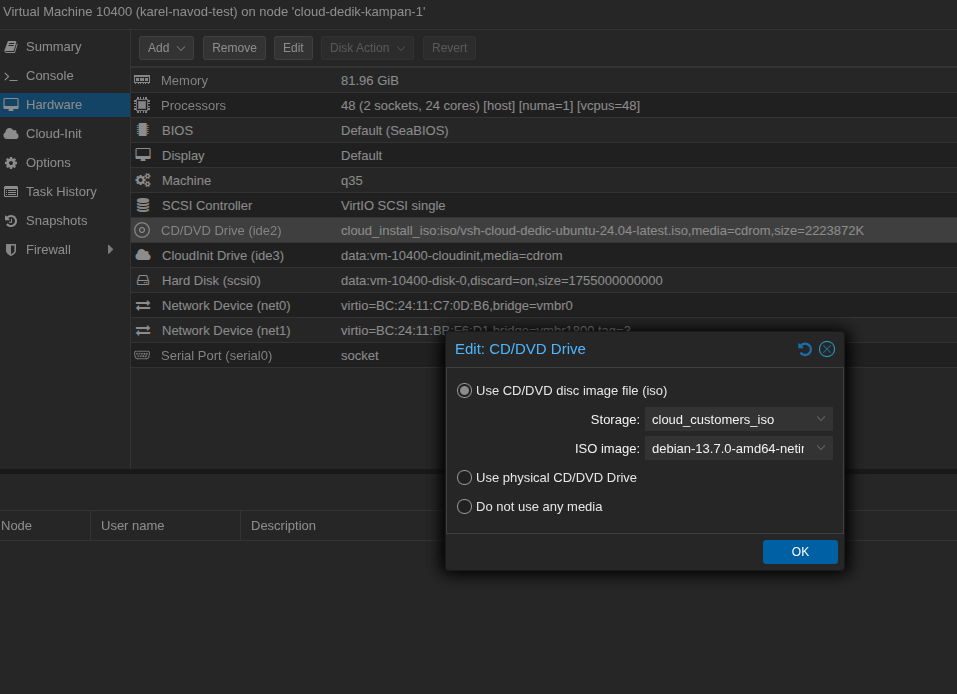
- Go to Hardware.
- Double-click the CD/DVD Drive.
- Select Use CD/DVD disc image file (iso).
- Choose storage (e.g.
cloud_customers_iso) and the ISO image you want to install. - Confirm with OK.
Booting from the ISO
1. Open the console (Console).
2. Start the VM (Start), or reboot it if it is already running.
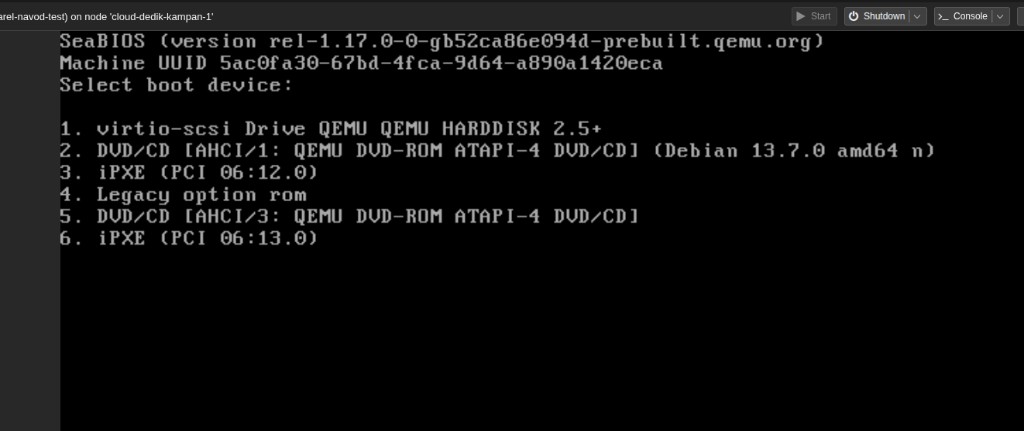
3. When the Proxmox splash screen appears, press Esc to open the boot menu.

4. In the boot menu, press 2 to select the DVD/CD drive with your ISO (the entry that shows the ISO name, e.g. Debian).
5. Follow the OS installer.
6. When the installer finishes, shut down or reboot the VM as prompted by the installer.
After Installation
- In Hardware, open the CD/DVD Drive again.
- Select Do not use any media and confirm with OK.
The server then boots from the disk automatically. - Complete network configuration using the IP addresses and credentials from your welcome e-mail / Client Zone.
Important Notes
- Installing a custom OS will overwrite the disk. Back up any data you need before you start.
- Use an ISO compatible with virtualized hardware (virtio drivers are recommended for Windows).
- For Linux, installing the QEMU guest agent improves shutdown/reboot handling from Proxmox.
- If the Esc boot menu does not appear, click into the console window first so it has keyboard focus, then restart the VM and press Esc again.
- If the ISO is not listed under option 2, check that it is correctly attached to the CD/DVD drive.
Support
For assistance, you can call or email our 24/7 support:
- Phone: +420 246 035 835
- Email: support@vshosting.eu