KVM Proxy for Dedicated Servers
For greater comfort of using dedicated servers, all clients of dedicated servers have KVM over IP available 24 hours a day via the KVM Proxy application. KVM (short for Keyboard, video, mouse) is an independent card in the server that allows its remote restart, display output from the monitor port remotely, etc. Thanks to KVM, you never have to go to the server room again, just log into Client Zone.
After logging in, select the SERVICES option, where a list of servers will appear.
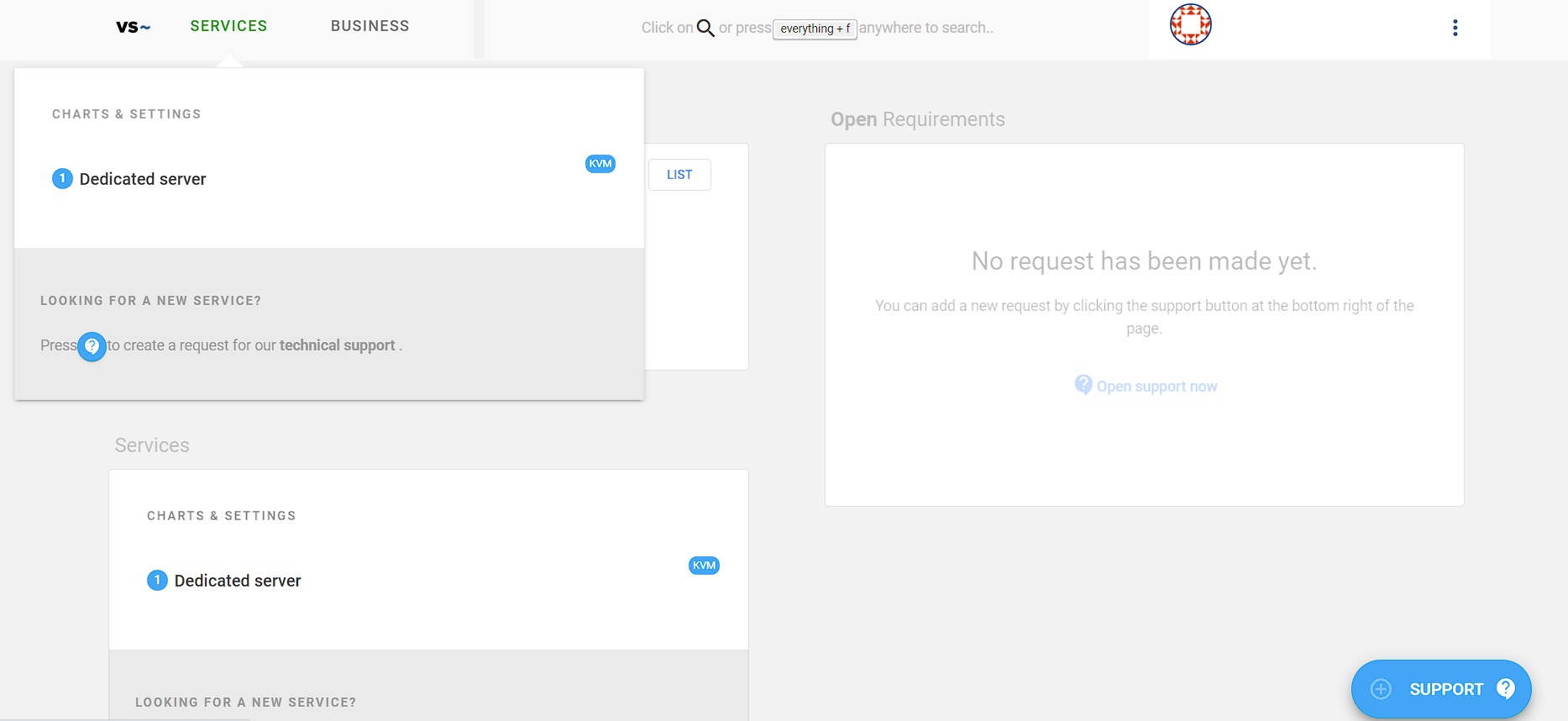
After clicking on the selected server, the server tab will appear.
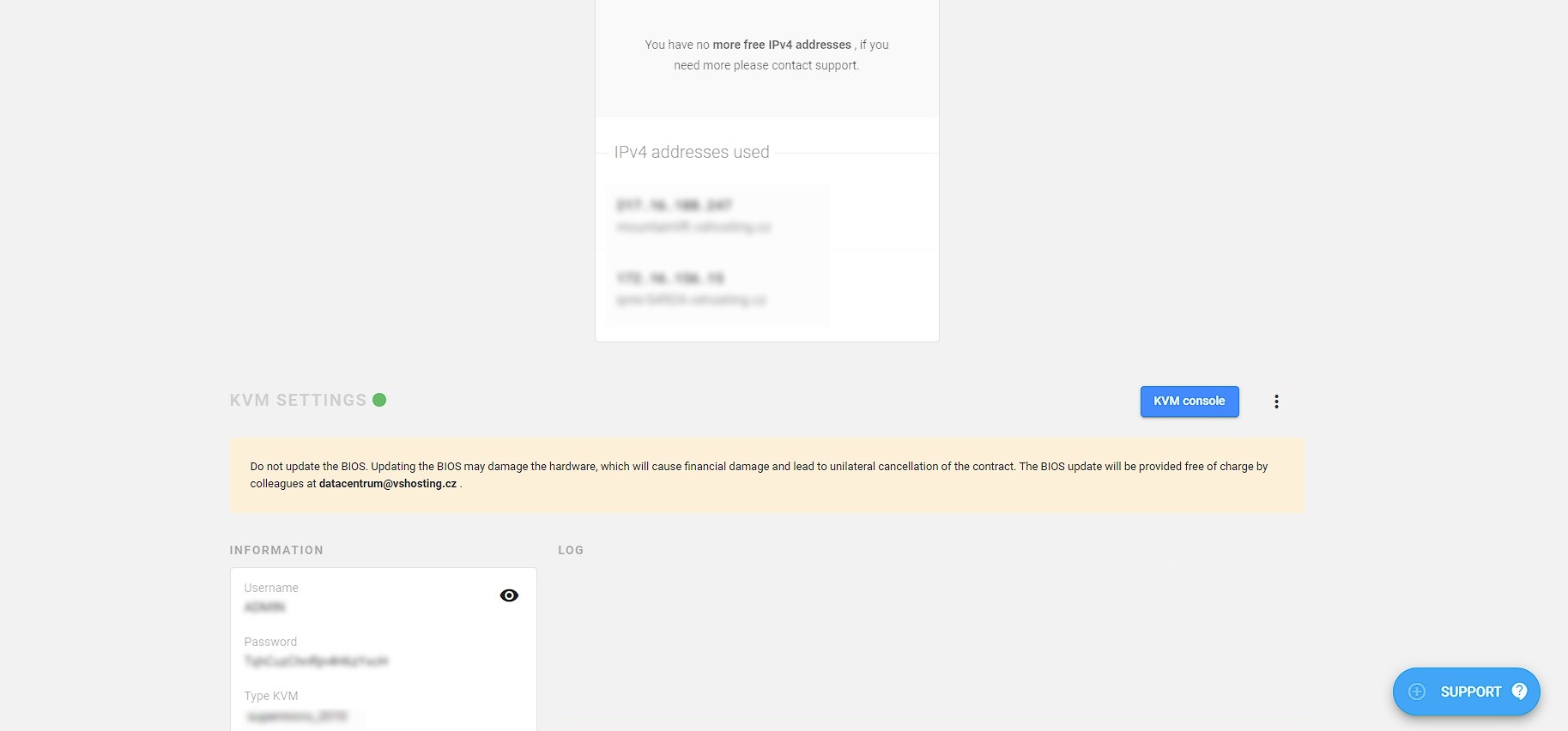
Here are options:
Power supply
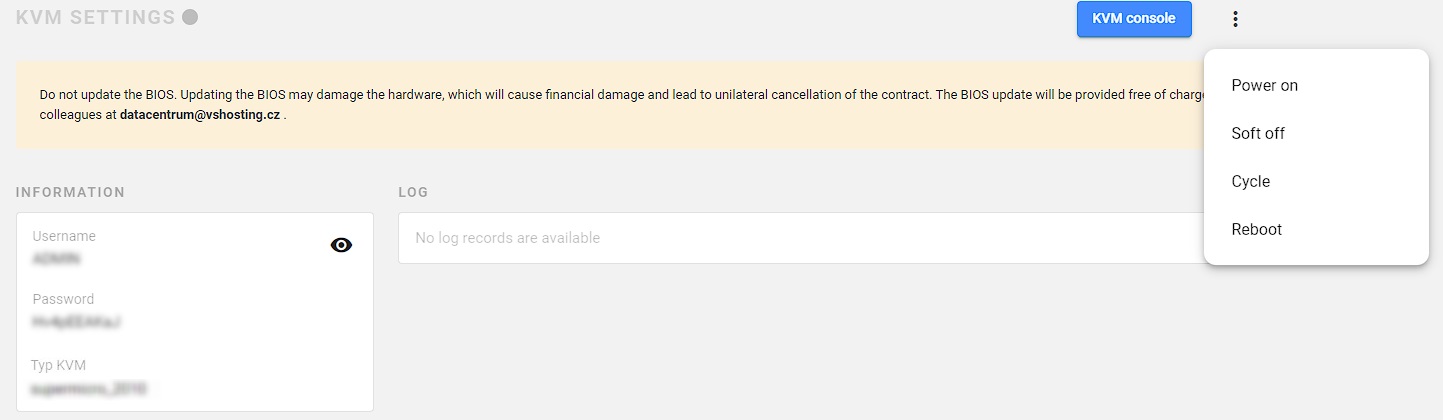
Power off - shuts down the server (only if the server is running)
Power on - turns on the server (only if the server is down)
Soft off - the equivalent of a short press of the power button on the server - if the server has ACPI support in the operating system, the server will be shut down correctly
Cycle - correct termination (via ACPI) and restart
Reboot - performs "hard restart" by briefly switching off the power supply
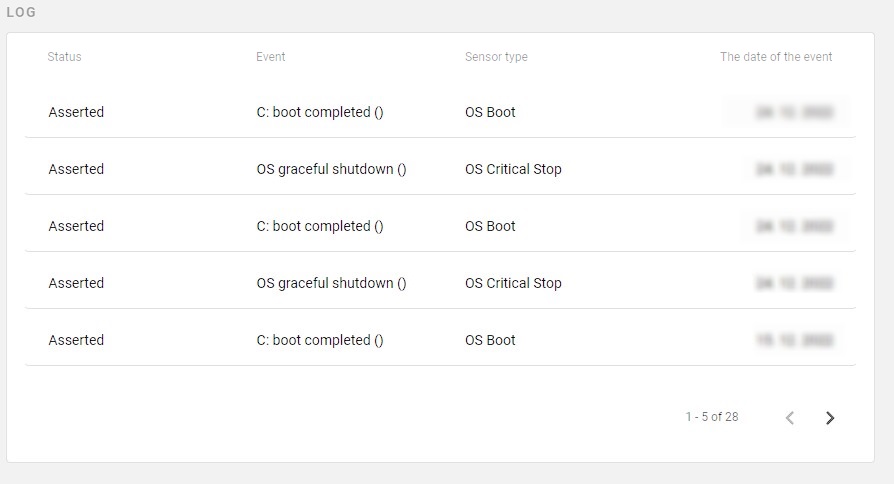
Log
The event of the bios setup shows some operating states and errors of the chassis server (source, fan error or server opening).
KVM

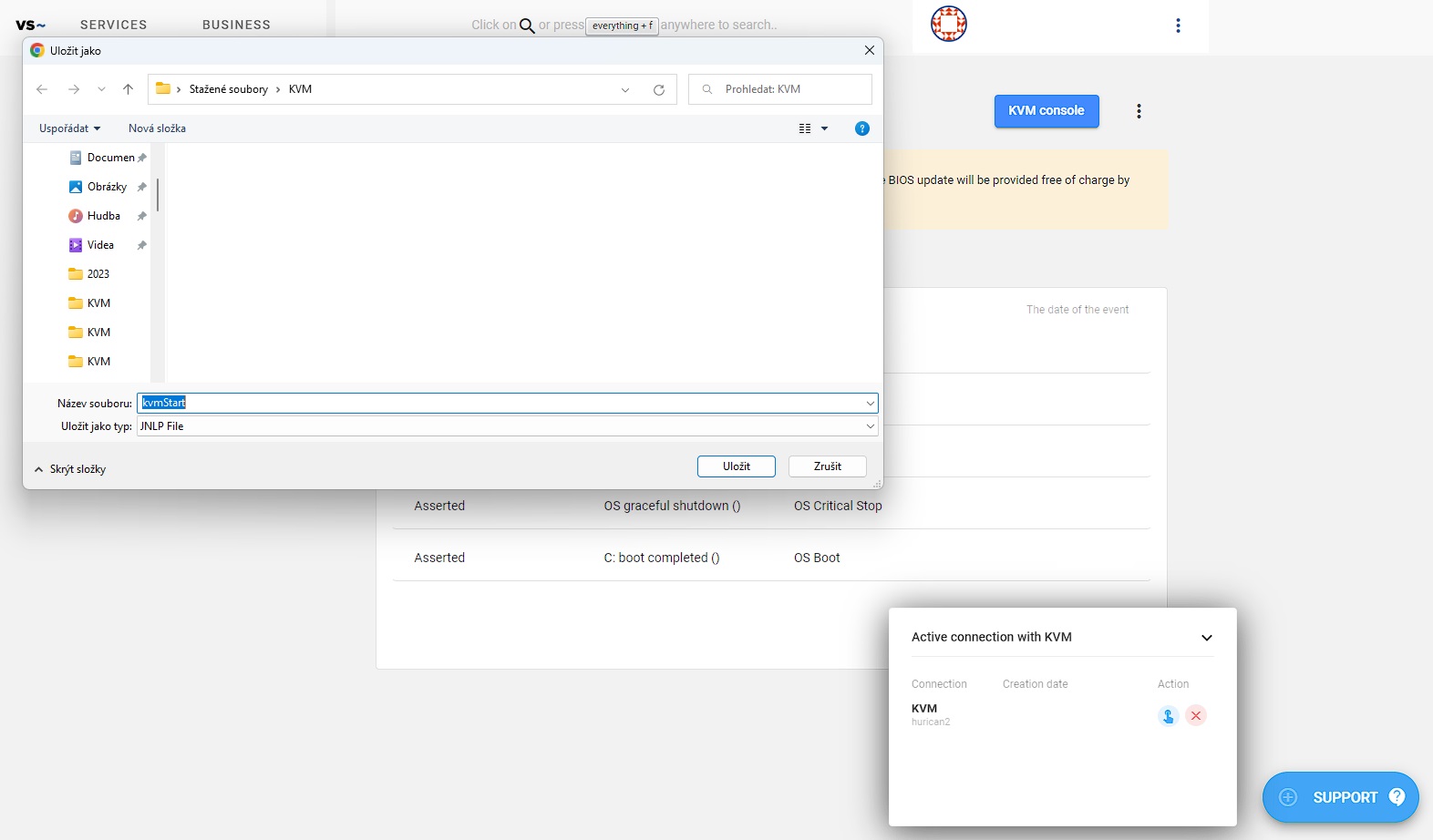
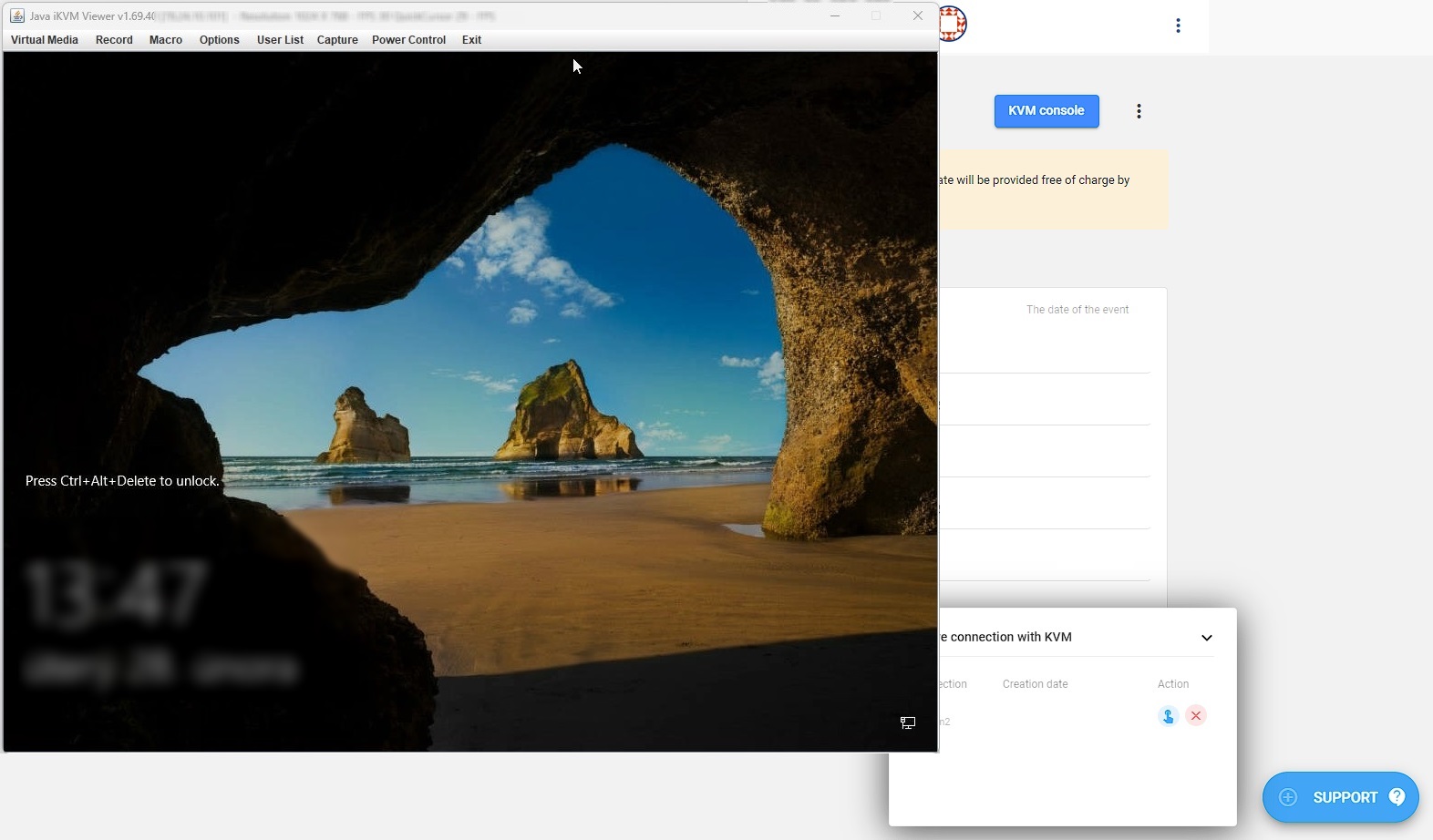
Displays the server console (equivalent to connecting a monitor and keyboard locally to the server) via a popup window in HTML5 or via a generated file to save and run using Java. CAUTION: This option requires Java to work properly on your computer.
DIRECT - Direct access
This option displays the KVM over IP (IPMI / iDRAC) page directly on the server.
Fixing Java console startup error (Supermicro H13SSH)
Servers with Supermicro H13SSH motherboard with the latest firmware contain a bug where the content of the launch.jnlp file is not generated dynamically according to the HTTP header HOST, but statically according to the IP address set in the KVM interface administration. It is likely that this problem also affects other models, which however we do not have available at the time of writing this guide.
Problem description and solution
If you access the JAVA console through the DIRECT interface, you must manually edit the launch.jnlp file after downloading it. Replace the internal IP address (starting with 172.16.x.x) with the domain name through which you are accessing the DIRECT interface (the address in the browser address bar).
Example of file editing
You can edit the file in any text editor or using the following command in the terminal:
# Replace with your actual address:
hostname="zlgo5bj9tbwfdo0nyuexlg.kvm-proxy-ng1.vshosting.cz"

# Batch update of IP address to hostname in launch.jnlp file:
sed -E "s/172\.16\.[0-9]{1,3}\.[0-9]{1,3}/$hostname/g" -i launch.jnlp
When do you not need this fix?
This procedure is only necessary for direct access to the JAVA interface (DIRECT option). This problem does not affect you in these cases:
- You use the HTML5 interface.
- You use the JAVA option in the KVM proxy interface to download the file – in this case, KVM proxy will fix the file automatically for you.
Unavailability
If you do not have a KVM Proxy application available for your dedicated server, please contact our HW/DC department datacentrum@vshosting.cz