GPU cloud - Client Zone
This guide explains how to manage your GPU servers in the client zone after logging in.
Accessing GPU Cloud Service
The GPU cloud service is accessible in Client Zone in the Services section on the home page or by clicking from the top menu.
Dashboard
After logging into the client zone and selecting the GPU cloud service, you will be taken to the dashboard at https://gpu.vshosting.cloud/dashboard.
On the dashboard page, you can see:
Company Details
In the company details section, you will find basic information about your account and company.
Billing Information
In the billing information section, you will find:
- Current billing status
- Payment history
- Information about prices and invoiced services
- Payment method details
List of VMs with GPU
In the list of VMs with GPU section, all your virtual servers with GPU are displayed, including:
- Server name and identification
- Current status (running, stopped, etc.)
- Configuration (GPU model, CPU, RAM, storage)
- Management options (restart, stop, start)
- Monitoring metrics (GPU, CPU, RAM usage)
Server Management
In the server list, you can control each server by clicking on the three dots (menu) next to the server. A menu will appear with the following options:
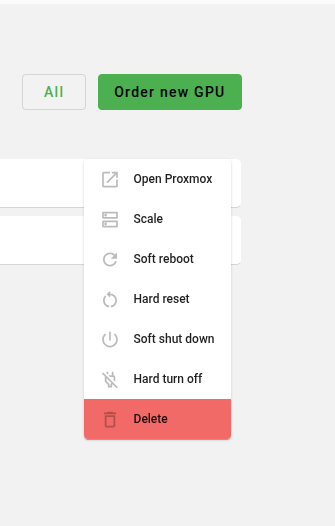
Open Proxmox
Opens the hypervisor web interface. You can use this option if the server is not booting, or if you need to debug it further.
Scale
Using this option, you can add up to 4 GPU cards to the server and proportionally increase RAM, CPU, and disk.
Soft reboot
Reboot as if you initiated it from the system. This is a safe operating system restart.
Hard reset
Reboot as if you pressed the reboot button on the server. Data integrity may be compromised, as this is a hard restart without proper process termination.
Soft shut down
Shut down as if you turned it off from the system. This is a safe operating system shutdown.
Hard turn off
Turn off as if you disconnected the server from power. Data integrity may be compromised, as this is an immediate shutdown without proper process termination.
Delete
Using this button, you will completely delete the server. Warning: This action is irreversible and all data on the server will be lost.
Support
For assistance, you can call or email our 24/7 support:
- Phone: +420 246 035 835
- Email: support@vshosting.eu