GPU cloud - Configuration and Ordering
This guide explains how to configure your GPU order on the GPU ordering page.
If you are a new customer, an account will be created for you automatically.
Accessing the Configuration Page
Navigate to: https://gpu.vshosting.cloud
Configuration Steps
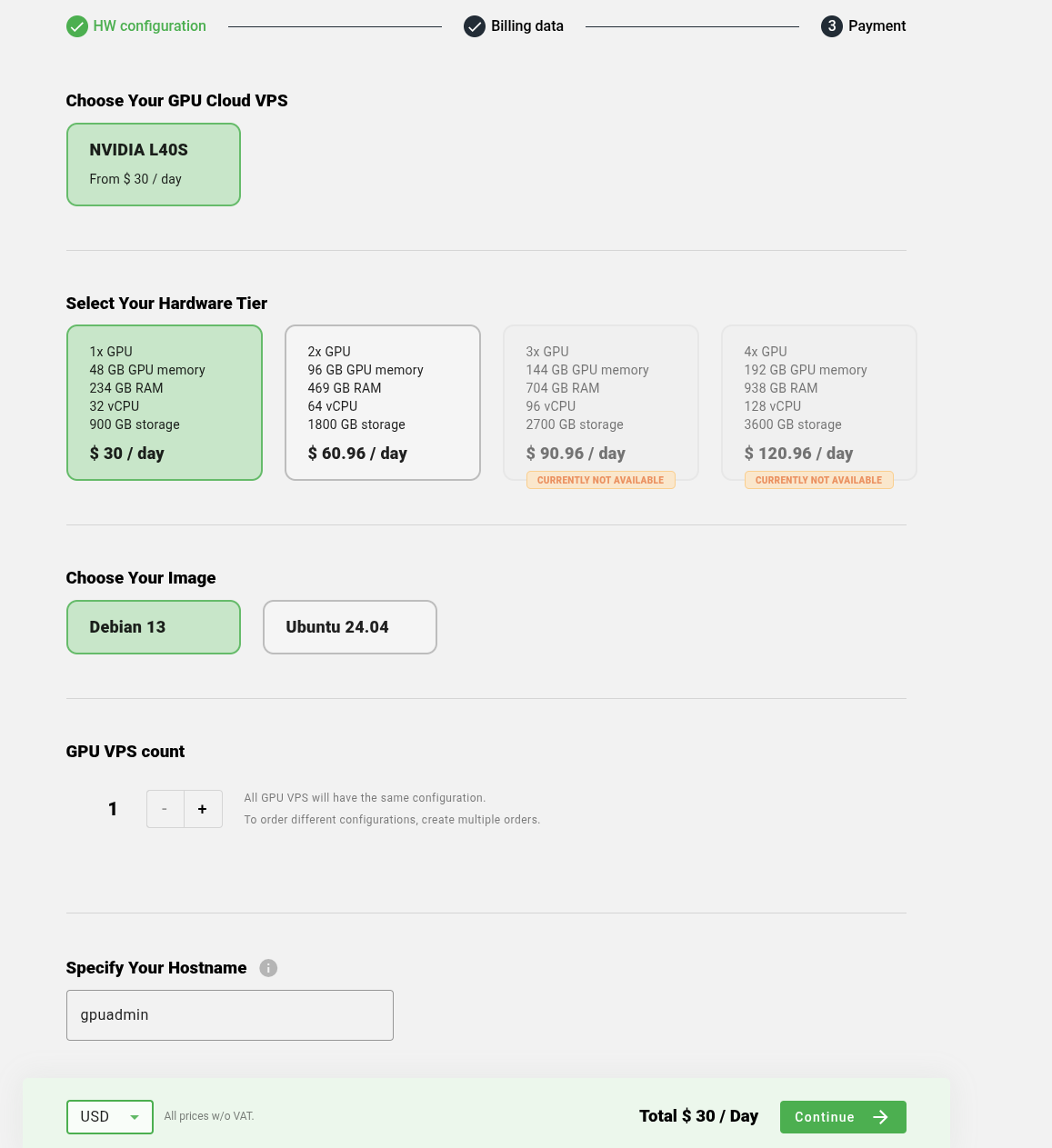
Step 1: Select GPU
- Choose the GPU model that best fits your requirements
- Available GPU models are displayed with their specifications
- Consider your workload requirements (compute, memory, etc.)
- Select the GPU from the available options
Step 2: Select VPS Count
- Specify the number of VPS instances you want to order
- Enter the desired quantity
- The count determines how many virtual private servers will be provisioned
Step 3: Select Server Configuration Package
- Important: You cannot select individual components (CPU, RAM, storage) separately
- Instead, you must choose from predefined configuration packages/blocks
- Each package includes a complete server configuration:
- CPU (number of cores)
- RAM (amount of memory)
- Storage (type and capacity)
- Network configuration
- Available packages are displayed as complete blocks
- Select the configuration package that best matches your needs
- Packages may vary in price based on included resources
Step 4: Operating System Selection
- Choose your preferred operating system
- Available options may include:
- Linux distributions (Ubuntu, Debian)
Step 5: Currency Selection
- Select your preferred currency for pricing
- Available currencies are displayed in the currency selector
- Choose the currency in which you want to see prices and make payments
Step 6: Hostname
- Enter a hostname for your server(s)
- The hostname will be used to identify your server
- Choose a unique and descriptive hostname
- Follow hostname naming conventions (letters, numbers, hyphens)
Step 7: Review and Confirm
- Review all selected configurations
- Verify pricing and resource allocation
- Click "Continue" or "Next" to proceed to the next step
Step 8: Customer Type
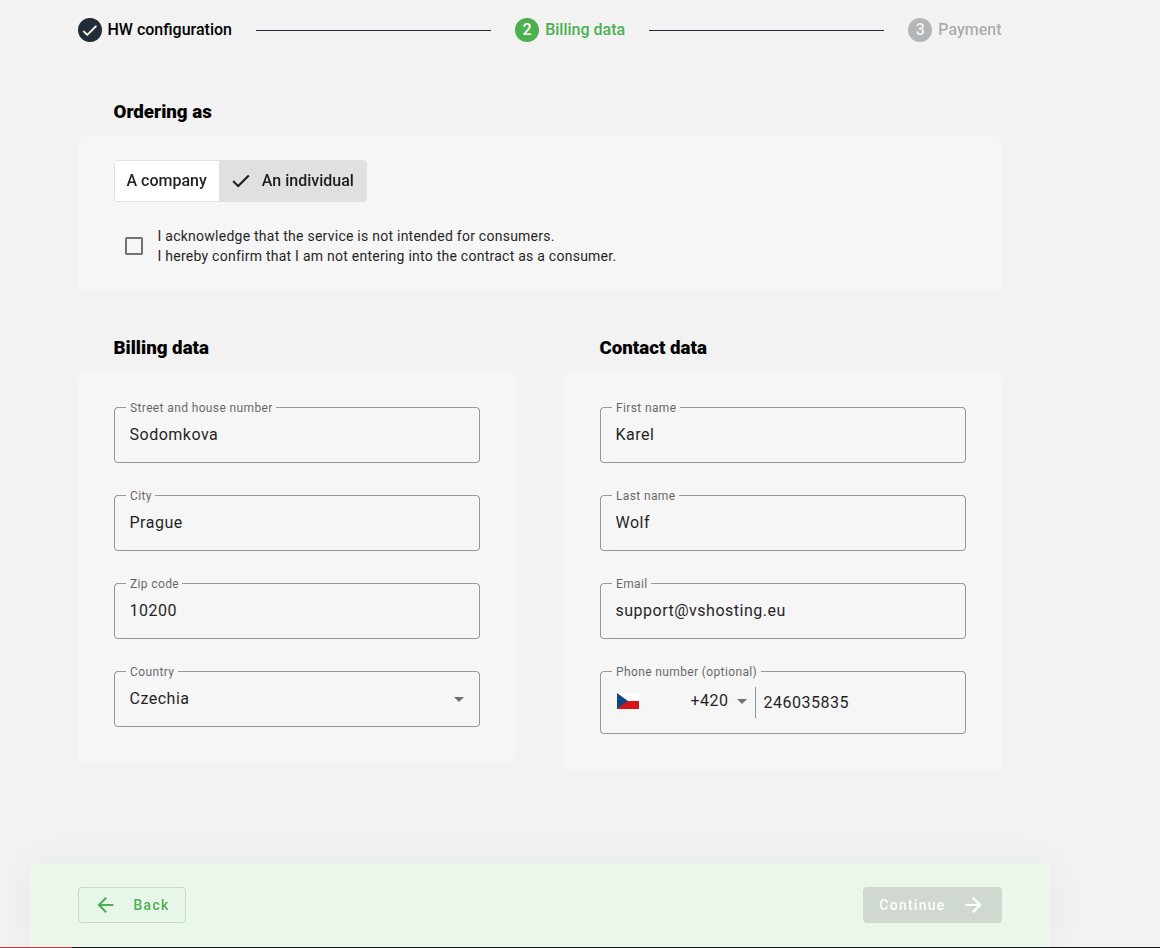
Select whether you are a company or an individual.
If you are an individual, you must check:
- "I acknowledge that the service is not intended for consumers. I hereby confirm that I am not entering into the contract as a consumer."
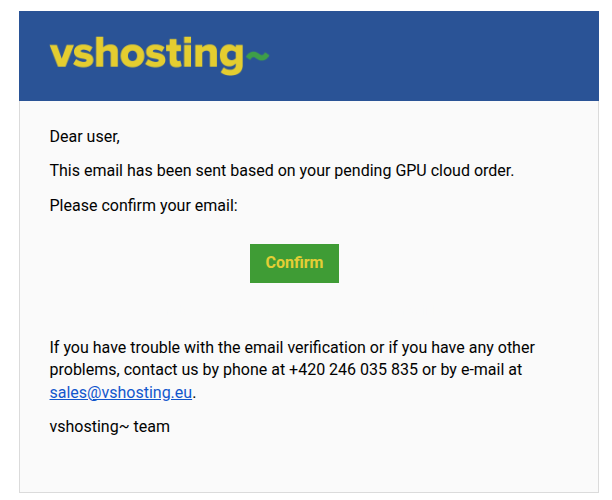
After confirming the step, you will receive a verification email. After clicking "Confirm", the process continues in the window that opens.
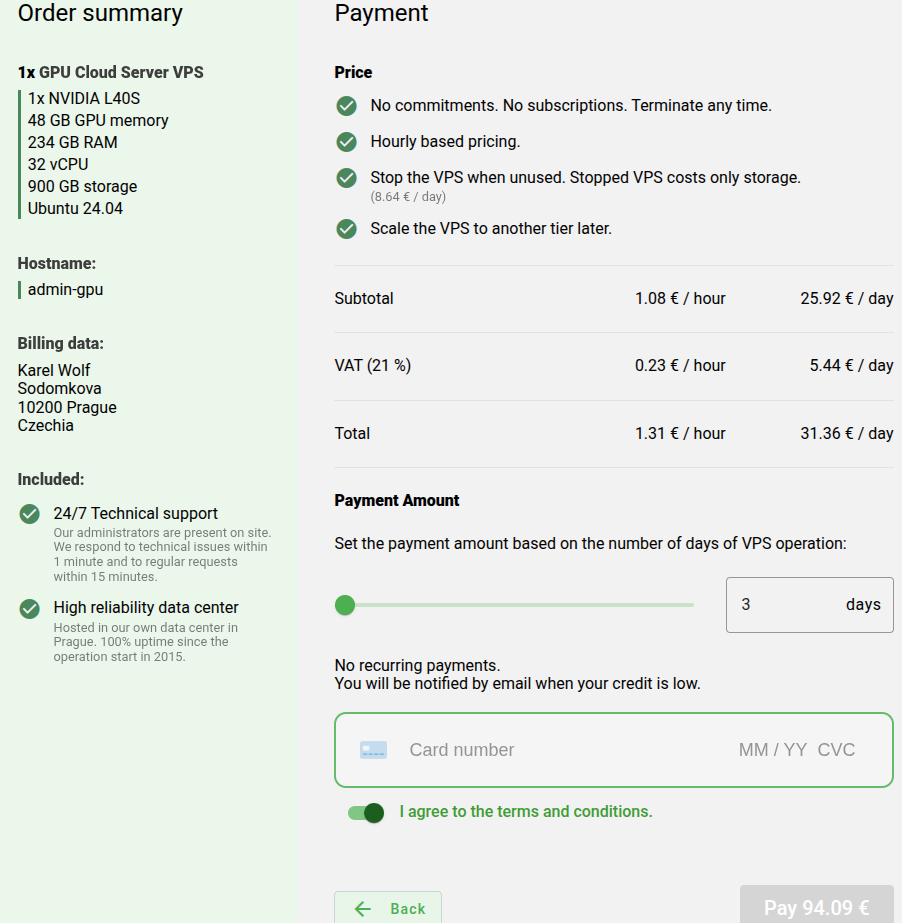
Step 9: Order Duration and Payment
- Fill in the number of days for which you want to order the VM
- Enter your payment card details
- You must check: "I agree to the terms and conditions."
Important Notes
- All configurations can be modified before final submission
- Pricing updates automatically based on selected options
- Server configurations are available only as complete packages, not individual components
- Some configuration packages may have dependencies (e.g., certain GPUs require specific server packages)
- Check resource availability before finalizing your order
Troubleshooting
- If a configuration package is unavailable, it may be due to resource constraints
- Refresh the page if options don't load properly
- Contact support if you encounter any issues during configuration
Support
For assistance, you can call or email our 24/7 support:
- Phone: +420 246 035 835
- Email: support@vshosting.eu